Tips & tricks
Small tweaks that make PT Pro faster to use and easier to organise.
General
- Zoom out one or two levels in your browser to see more (cmd + minus)
- Collapse the main menu to get more room on screen (click the arrow at the top right of the menu panel)
Creating sessions and programmes
Naming and structure in the library
- Use a consistent naming system for sessions in the library, so they are easy to find again
- Adjust the session names after you have copied them to the client
- If you copy a client programme back to the library, make that clear in the name
Build in the library, copy to the client when you’re done
Create sessions and programmes in the library, where you have more room to see the exercises without the client info above them. When you’re done, copy the sessions or the programme to the client.
Add exercises efficiently
Use the plus icon next to the exercise instead of drag and drop when you want to add an exercise.
Autosave while editing
Turn off autosave for a faster editing experience, but remember to click save when you’re done.
Drag and drop: how to hit the right spot
When you reorder exercises with drag and drop:
- Press and hold just above or below the exercise box (for a single exercise), or on the six dots for groups
- Drag slowly, and if needed let autosave finish before you move on
Use groups to build sessions faster
Include sets and reps, and make use of standard groups such as warm-up, superset, tri-set and stretching.
Let the client log their own training
Do you want the client to be able to create and log a session themselves?
Create an empty session called “Own training (cardio)” and one called “Own training (strength)”.
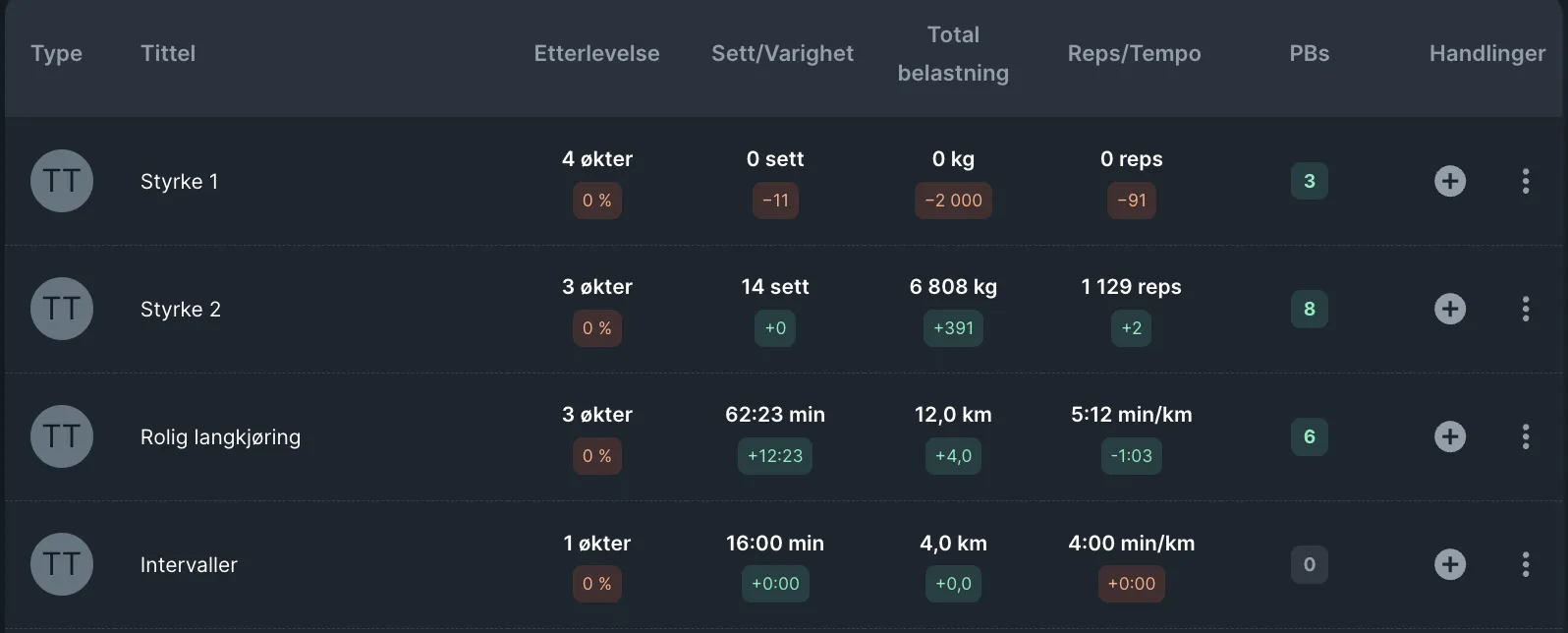
Set Session type in the settings to Strength or Endurance, so it is logged correctly in the training table and under Progress.
Fill in session settings for better sorting and correct data
Fill in all the settings for each session (click the cog at the top left of the session).
- That way the session is categorised in the library, making it easier to find later
- At the same time, the right type of data is shown in the training table and under Progress
Client management
- Add all potential leads to your list. Write consultation notes and convert them to a client if you make the sale
- Use Add note in the leads menu for your consultations. The notes are moved to the client notes when the lead is converted to a client