The client app: Resources, appointments, check-ins, and more
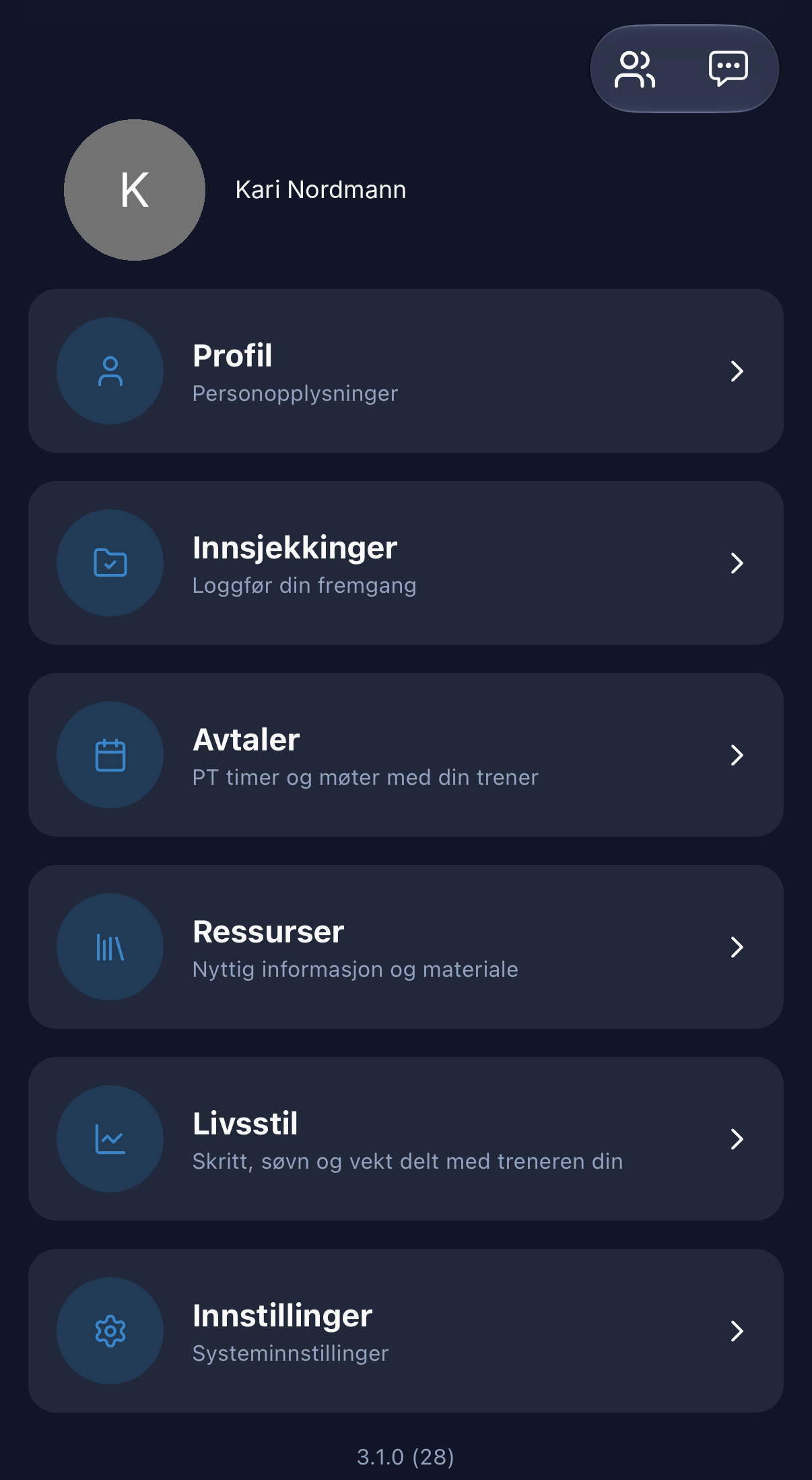
The client can find this under More in the app, and you must set this up for it to be displayed.
Check-ins
The client taps Check in to complete the check-in form. Under Unanswered, they will find forms you have sent that haven't been completed yet, and under Previous check-ins, the client can view their submitted responses.
The form is divided into themes, such as training and nutrition. Questions marked with an asterisk must be answered.
What you do: Link a check-in form to a product, set up automatic reminders with a fixed day and time, or send the form manually from the client card. With automatic reminders, the client receives a notification in the app and the form via email. You can find the responses under Reports on the client card. See Forms.
Appointments
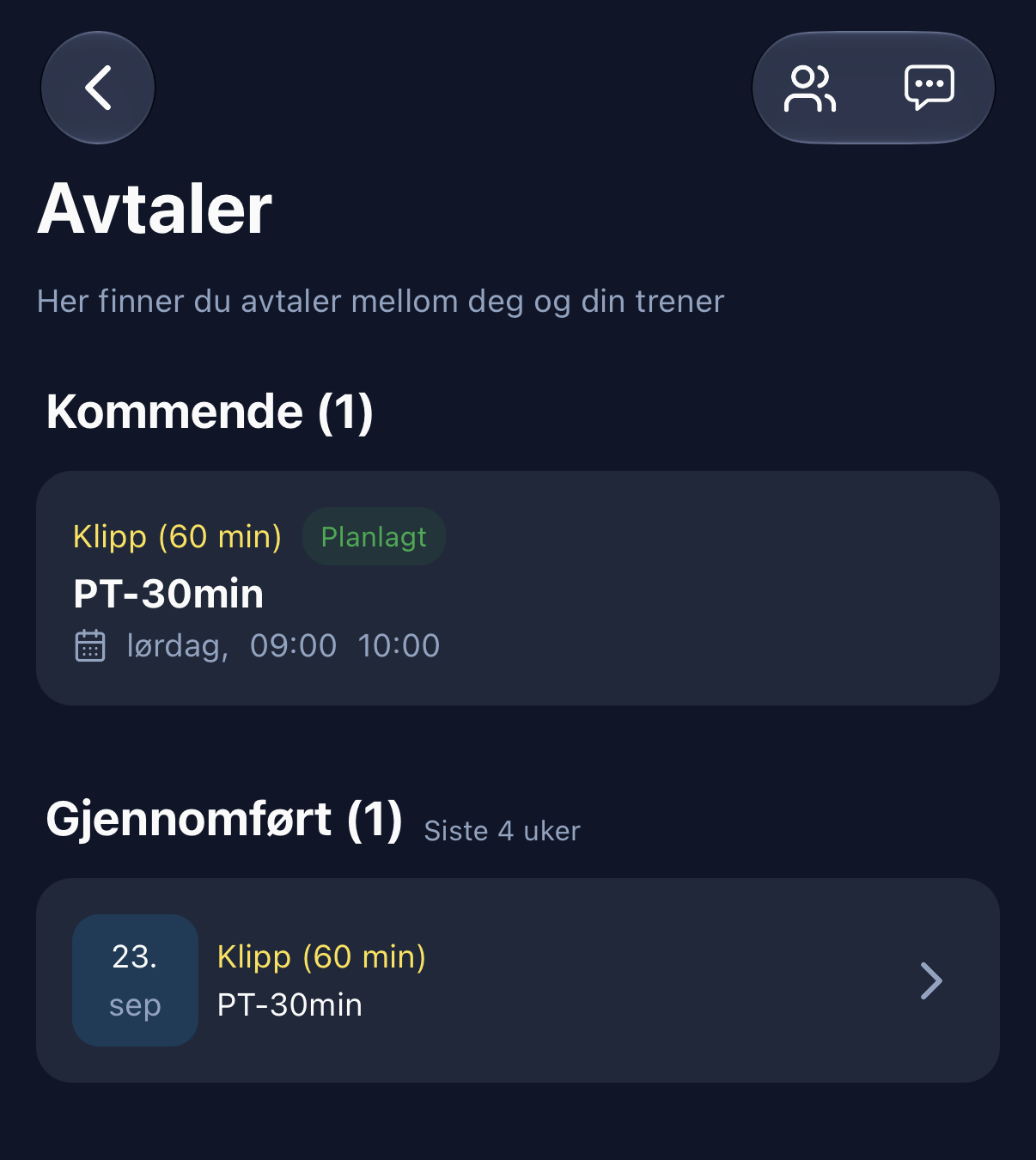
The client sees upcoming sessions and completed sessions from the last four weeks, including type, service, and time. If the client taps a session, they can see which product it belongs to and how many sessions are remaining.
- Sessions are only deducted once you mark the appointment as completed
- Clients can book themselves if the service in the product is set to "can be booked by the client". Clients only see available times and cannot book more sessions than they have remaining
- Clients cannot currently move or cancel a session themselves and must contact you to do so
Resources
The client sees the resources you have shared, organized in folders with images and descriptions.
The folder contains the content. Videos play directly in the app, and documents can be downloaded.
What you do: Share resources from the client card, or add them to a product so the client receives them automatically upon purchase. With a validity period, you can "drip-feed" content over time. See Resources.
Lifestyle
The client can view steps, sleep, and weight per week for their chosen period. Synchronize fetches new data from their phone.
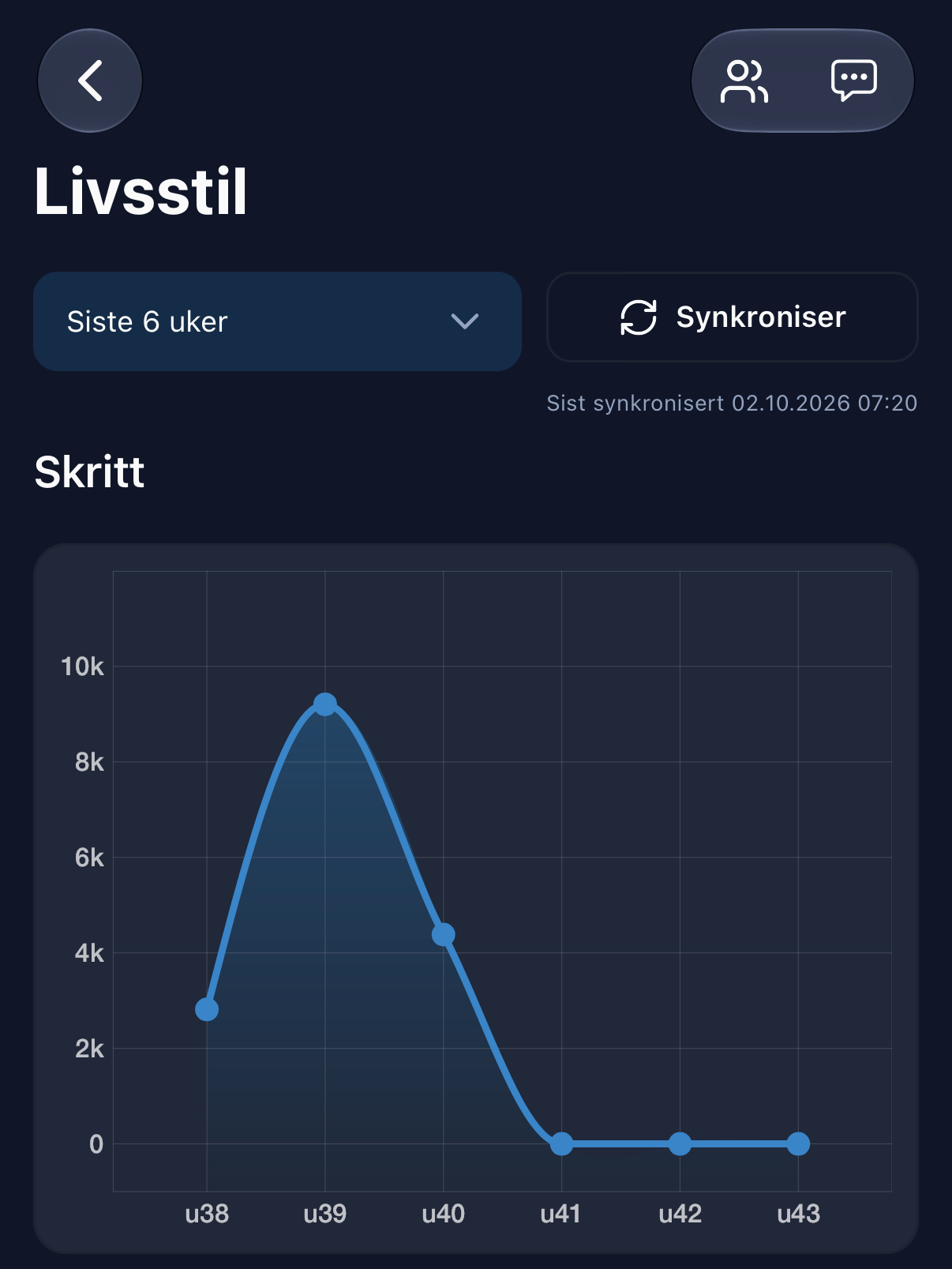
This data is only displayed when the client has enabled synchronization under Settings. You can see the same data on the client card.
Settings
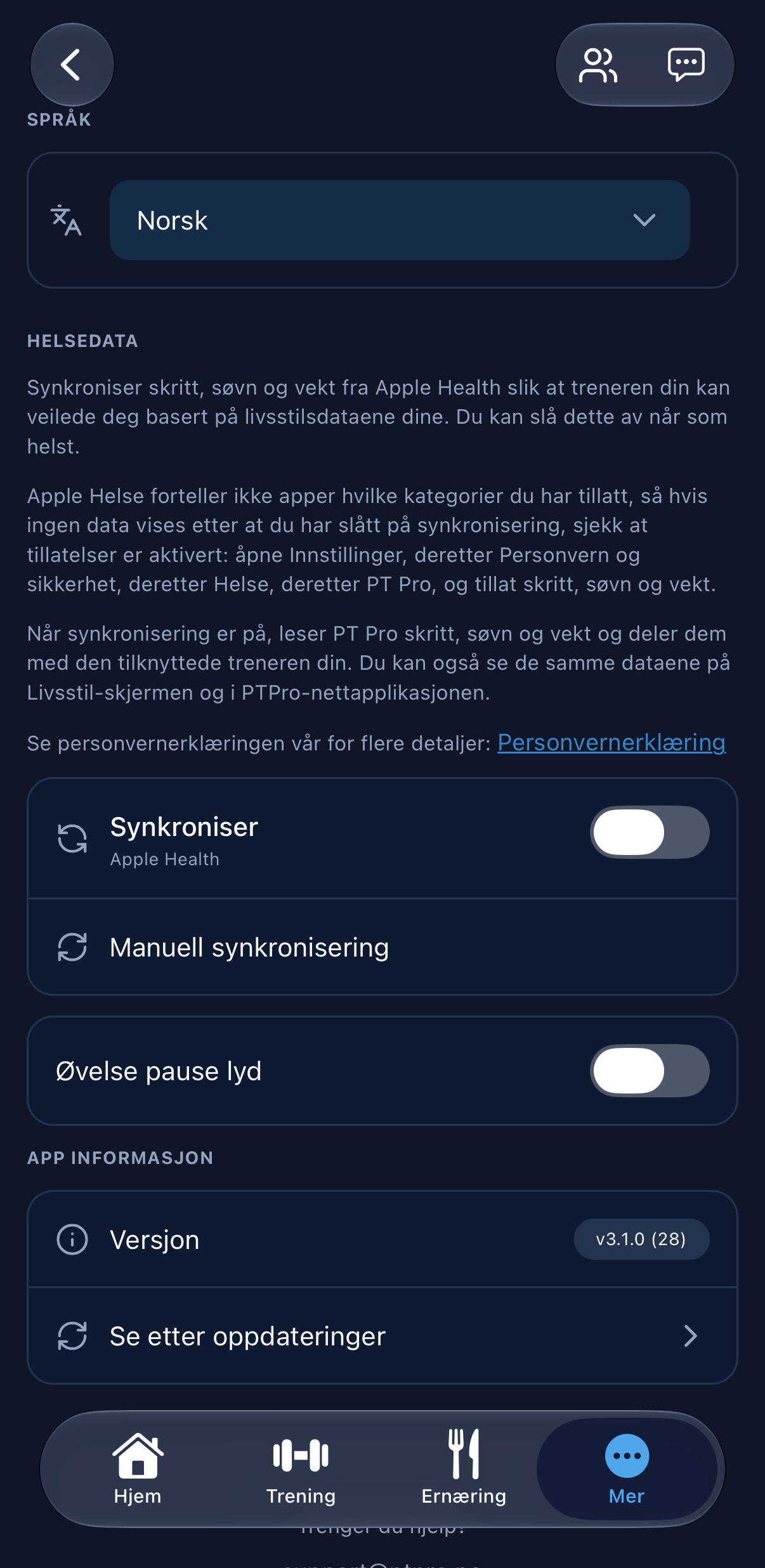
- Language in the app
- Health data: enable synchronization of steps, sleep, and weight from Apple Health on iPhone or Health Connect on Android, or sync manually. The client can turn this off at any time
- Rest timer sound: sound notification when the rest between sets is over
- Version and Check for updates