The client journey: This is what the client sees
This is how the client experiences PT Pro, from the first email to approval and payment of the product, renewal, and use of the app.
1. Registration
When you add the client, the email is automatically sent to the address you entered.
The client receives the email «New profile created on PTPro» with their username (email address), a temporary password, a link to the website, and links to download the app.
If you have set up an onboarding email under Settings → Branding and landing page, the client will also receive that.
2. First online login
The client follows the link in the email and logs in with their email and password. Later, the client can also use a passkey, or "Reset it" if they forget their password.
When logging in, the client may receive a one-time code via email. The code is valid for 10 minutes and can only be used once.
The client arrives at the dashboard. Here, the client sees their active training programme and meal plan, calendar with bookings, their trainer, active products, goals, and progression per exercise. The client should change their password after the first login.
3. The product: approval and payment
Regardless of whether you add the product to the client or the client orders it from your landing page, the client must personally accept the product before it becomes active.
If you add a product to a client who already has an account, the client receives the email «New service needs approval on PTPro».
A yellow notification appears at the top of the dashboard indicating that the trainer has set up a new product. The client chooses Accept or Reject.
The client sees a summary of the product: name, renewal, price, duration, and start date.
Under Payment method, the client chooses One-time payment or Add new payment method. A new payment method can be a card or a wallet like Google Pay.
If the client chooses a card, they enter the card number, expiry date, and security code.
The client confirms that the payment method can be saved and used for future payments, then taps Save. If the client has previously saved a card via Stripe Link, that card will be displayed.
The client checks Accept terms. The links show PT Pro’s terms, the privacy policy, and the trainer's own terms, which you write yourself on the product.
The Accept button only becomes active once both the payment method and terms are in place. The payment is charged, and the product is activated in the background. It may take a few minutes before it appears as active.
The client receives a confirmation email with details about the product, trainer, and the next renewal date or validity. The receipt is stored in the client's account and may be attached to the email.
4. Renewal and overview of products
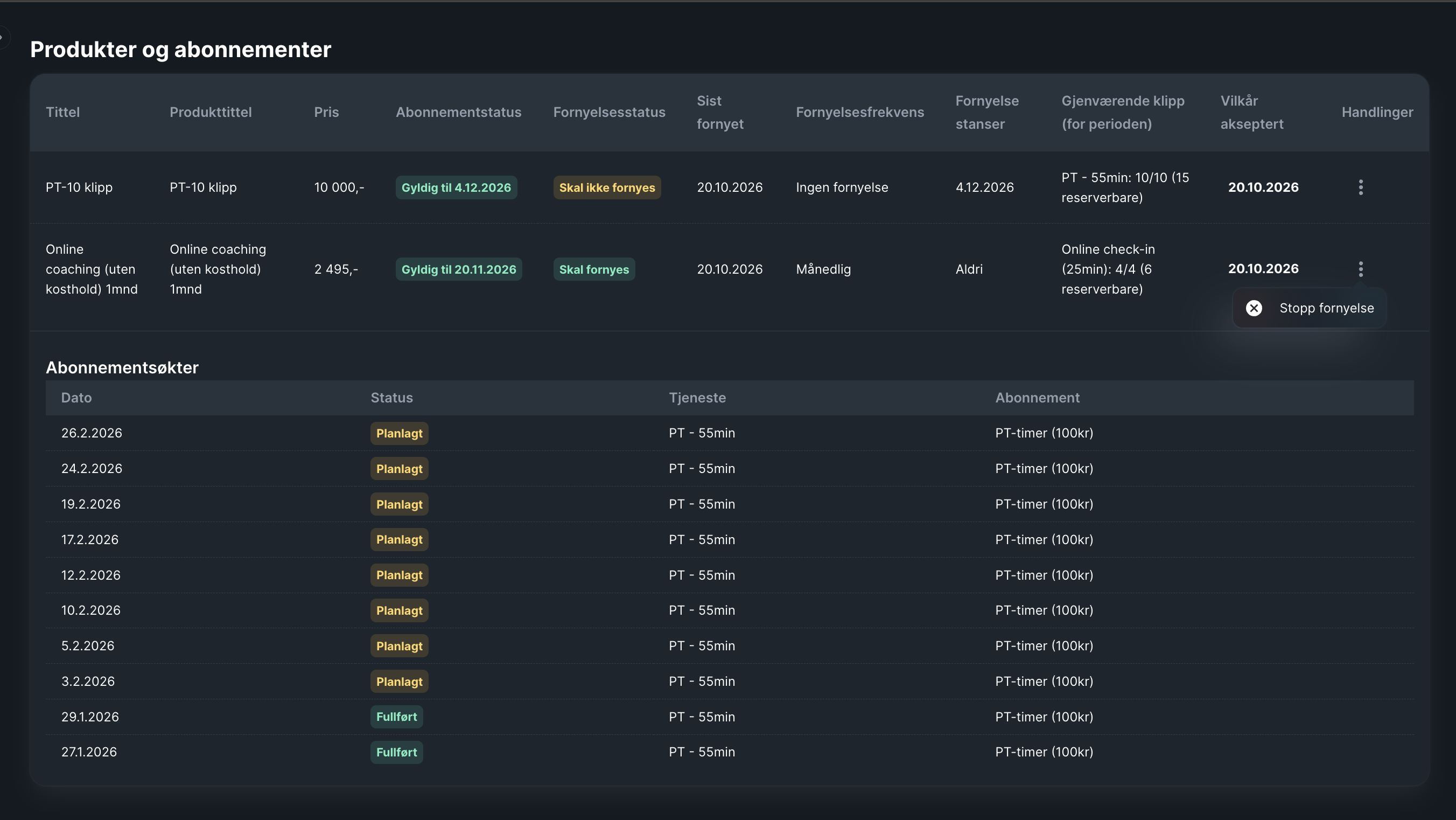
Under Active products → Manage on the dashboard, the client sees the Products and subscriptions page.
- Each product is listed with price, duration, renewal settings, last renewal date, and frequency.
- Shows remaining sessions in the period and the date terms were accepted.
- Subscription sessions: booked and completed sessions deducted from the product.
- The client stops the renewal themselves under ⋮ → Stop renewal. The current period will continue as normal until it expires.
- Subscriptions are renewed automatically, and the amount is charged to the stored payment method.
- The client does not receive an email upon renewal. The receipt is available in the client's account.
- If a renewal fails, you as the trainer will receive an email notification.
5. The app
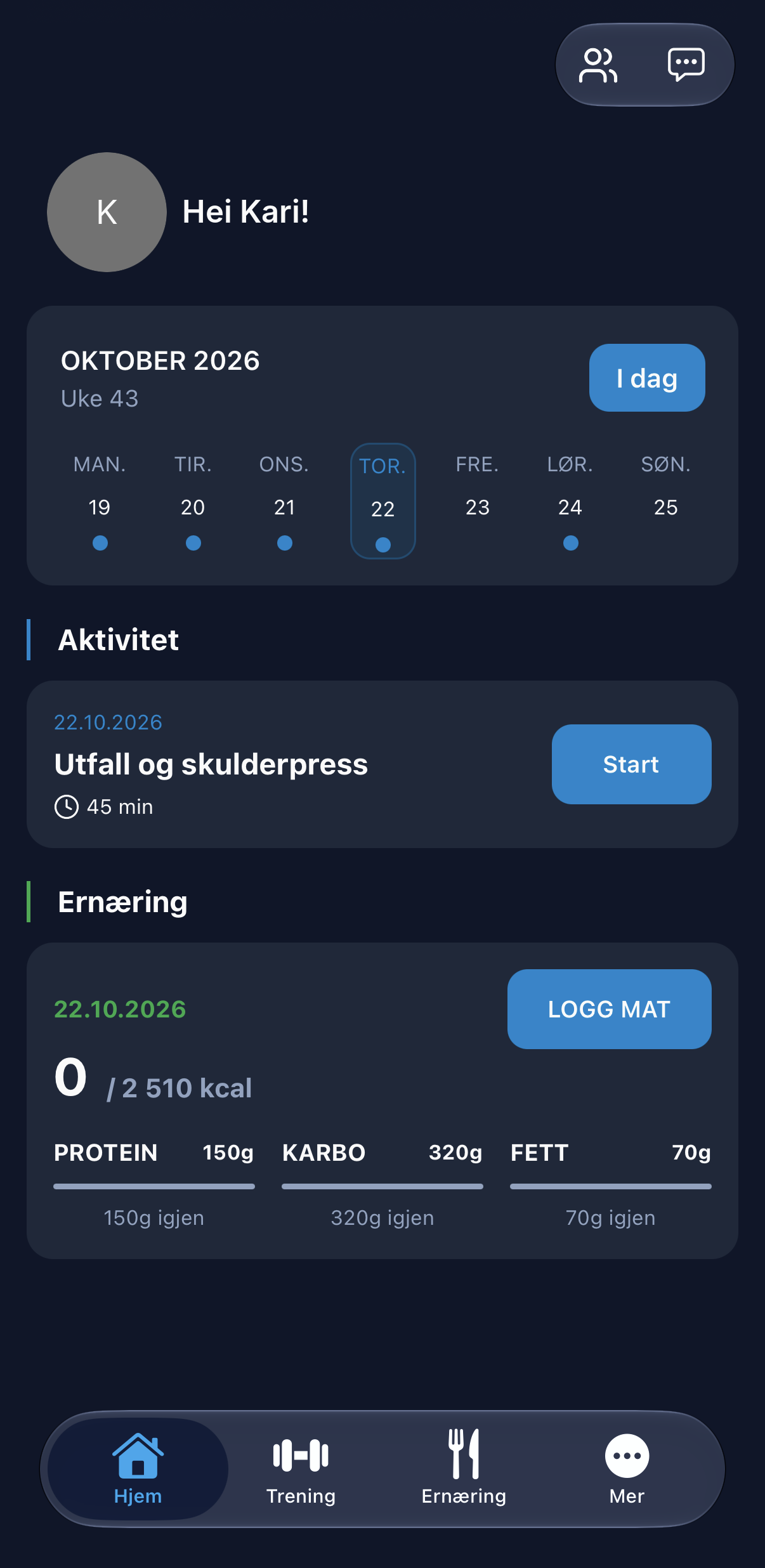
The client downloads PT Pro from the App Store or Google Play and logs in with the same username and password. The app has four tabs: Home, Training, Nutrition, and More. Chat with the trainer is located at the top right.
Home
The front page shows the week's activity, today's session with a Start button, and today's nutrition (calories and macros) with a Log food button.
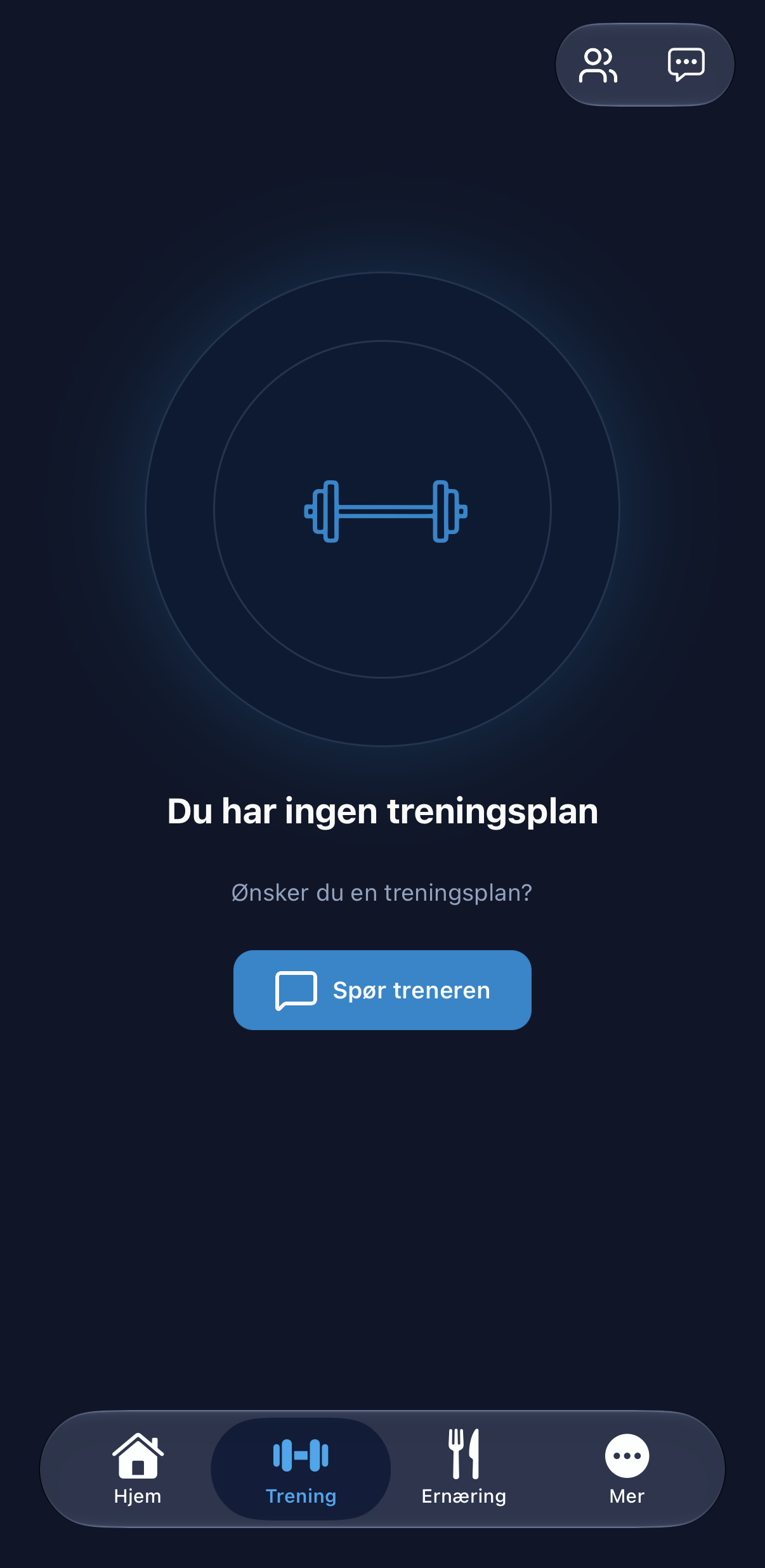
Before you have added a programme
The client only sees active plans. Without an active programme, the Training tab shows "You have no training plan" and a Ask the trainer button, which opens the chat.
Training with a programme
The client opens the session to see duration, number of sets, equipment, and all exercises with videos and instructions. The client taps Start session.
The client logs weight and reps for each set. The target you have set (e.g., 8–12 reps and 2 RiR) is shown alongside. The timer at the top shows active time and rest.
Weight and reps are entered using the keyboard at the bottom.
The client can also enter reps in reserve: how many reps they had left in the tank, from max effort to very light.
Once the session is completed, the client sees time, sets, reps, total volume, and new personal bests.
The client rates how easy the session was, their satisfaction level, and how rested they feel, can write a comment to you, and taps Finish.
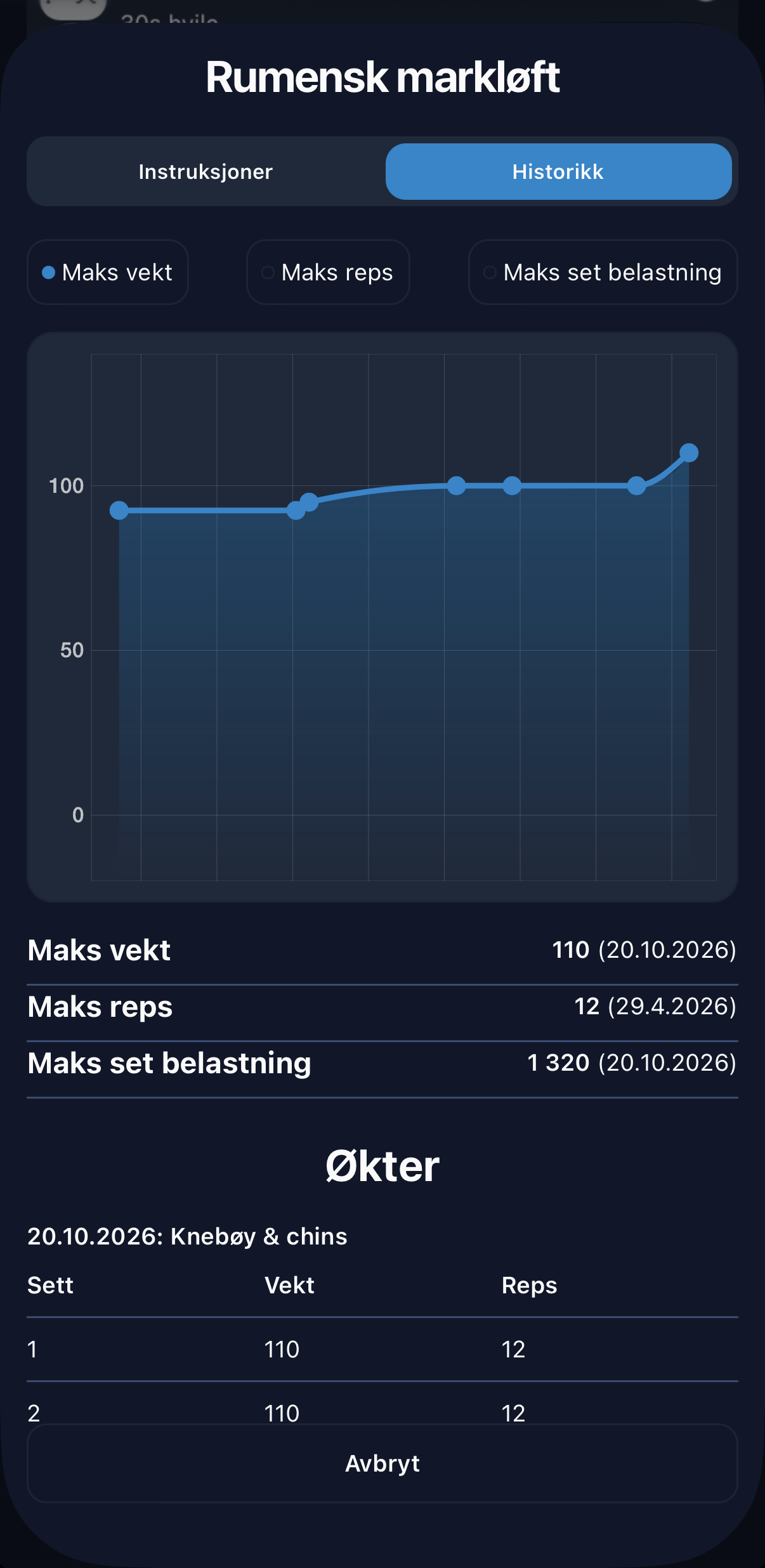
Under History for each exercise, the client sees a graph showing max weight, max reps, and max set volume, alongside previous sessions for the same exercise.
- If the client has multiple active programmes, they can switch between them by tapping the programme title.
- Sessions you have hidden are not visible to the client.
Nutrition
The Nutrition tab shows the active meal plan, days remaining, and today's calories/macros versus the goal. The Plan, Log (day), and Log (week) tabs show the plan and what the client has logged.
Each meal has calorie and macro targets, along with one or more recipe options.
Using Log food, the client selects a meal and adds food via search, barcode scanning, images from the gallery/camera, voice input, or recently used items.
More in the app
Under More, the client can also find check-ins, appointments, resources, lifestyle tracking, and settings. See Client app: Resources, appointments, check-ins, and more.
Read more
- Client app: Resources, appointments, check-ins, and more
- Your first client
- Sell your products
- Take payments with Stripe
- The client profile